
LiteSpeed Crawler Disabled? How to Preload Your WordPress Cache Anyway
Your WordPress site uses LiteSpeed Cache, but its built-in crawler is disabled — possibly by your hosting provider. Page caching still works, but after cached pages are purged or expire, the next visitor may have to wait while WordPress generates them again.
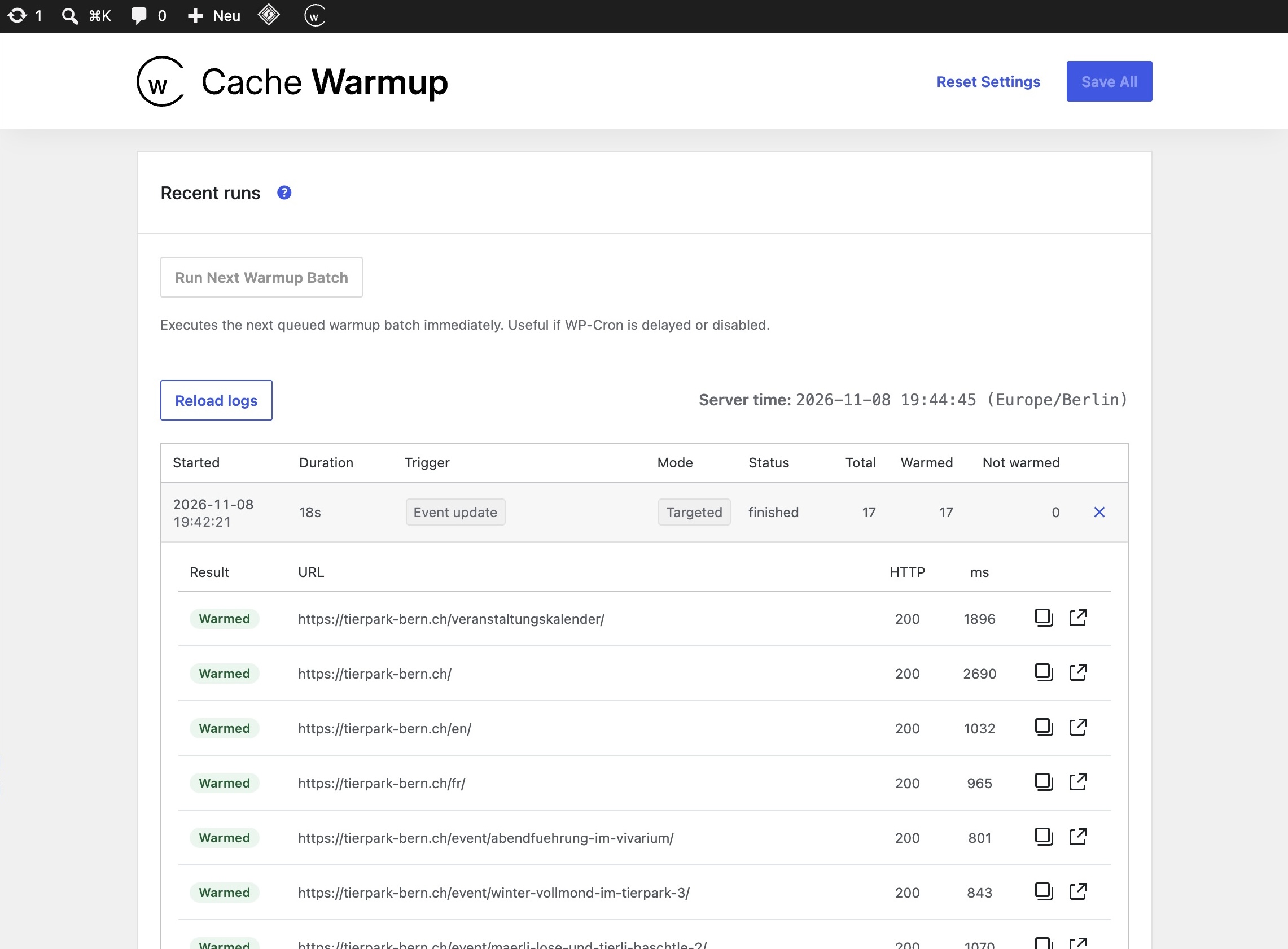
You can preload LiteSpeed Cache without enabling its built-in crawler. Cache Autopilot Free works alongside LiteSpeed Cache to refresh affected pages and preload them through controlled background requests.
Why is the LiteSpeed crawler disabled on shared hosting?
LiteSpeed’s built-in crawler needs to be enabled at the server or virtual host level. On shared hosting, that decision usually belongs to the hosting provider, who may restrict crawling because of its resource usage.
As explained in the official LiteSpeed crawler documentation, this is a server-level setting, not necessarily a problem with your WordPress installation.
LiteSpeed also confirms that its crawler restrictions do not automatically apply to third-party crawlers. However, your hosting provider’s resource limits and policies still apply.
What happens to WordPress pages without cache preloading?
When a cached page is purged or expires, the first request may result in a cache MISS. WordPress then has to generate the page before LiteSpeed can store the response.
Subsequent visitors may benefit from a fast cache HIT, but that first visitor has already experienced the slower response.
This is particularly noticeable after publishing changes or clearing the entire cache.
How to preload LiteSpeed Cache without its crawler
Cache Autopilot complements LiteSpeed Cache rather than replacing it. LiteSpeed handles caching and delivery, while Cache Autopilot manages the refresh process:
- Detect changes: Identify relevant WordPress content or presentation updates.
- Purge affected pages: Determine which URLs need refreshing and let LiteSpeed Cache purge them.
- Preload in the background: Request those URLs so LiteSpeed can rebuild their cache entries before visitors arrive.
Targeted cache refresh instead of full-site crawling
Rather than refreshing every page after each change, Cache Autopilot targets affected pages whenever it can reliably determine where the changes appear.
Full-cache refresh and preload are also available when a broader refresh is needed.
How long does a full-site cache preload take?
Cache Autopilot preloads pages one at a time, rather than sending many requests simultaneously. This helps keep server load manageable, particularly on shared hosting.
The time needed depends on the number of pages, how long each uncached page takes to generate, and the available server resources and scheduling.
A large full-site preload can therefore take some time. That’s an intentional trade-off: controlled background requests instead of maximum crawling speed.
For recommended LiteSpeed Cache settings — including cache TTLs, automatic purge rules, Guest Mode and Serve Stale — see the LiteSpeed Cache configuration recommendations.
How to verify that LiteSpeed Cache has preloaded your pages
You can check whether LiteSpeed is serving a cached page using your browser’s developer tools:
- Trigger a cache refresh and let Cache Autopilot finish preloading.
- Open a public page in a fresh, non-logged-in browser session.
- In the Network panel, inspect the main document’s response headers.
Look for:
X-LiteSpeed-Cache: hitA HIT means LiteSpeed served that request from its cache. A MISS means the request wasn’t served from an existing cache entry.
Keep in mind that different cache variants, such as those for particular visitors or devices, may have separate entries. A MISS doesn’t necessarily mean Cache Autopilot failed to request the page.
For more details, see LiteSpeed’s official guide: Verify Your Site Is Being Cached.
See Cache Autopilot’s cache refresh in action
See Cache Autopilot in action — jump straight to the integration demos.
Keep your LiteSpeed cache fresh and preloaded
Cache Autopilot Free supports targeted cache refresh for common WordPress changes, archives, taxonomies, forms and Gutenberg structures such as synced patterns, templates and navigation.
The free version is not a trial and does not expire. PRO extends the same approach with Elementor, ACF relationships, multilingual sites, timed invalidation, access control and other advanced features.
→ Install Cache Autopilot Free on WordPress.org
→ See how Cache Autopilot works
→ Compare Free vs PRO
→ See PRO pricing
Frequently asked questions about LiteSpeed crawler alternatives
Yes. LiteSpeed’s page caching and its built-in crawler are separate features. Disabling the crawler does not automatically disable page caching.
Only if your hosting provider has enabled the crawler at the server level. If it remains unavailable, contact your host or consider an alternative preloading approach.
Generally, yes, provided your host permits the required background HTTP requests and scheduled jobs. Cache Autopilot uses paced, sequential preloading to limit request bursts, but it still consumes server resources. Check your hosting provider’s policies if you’re unsure.
Not simply because their cache TTL expires. Cache Autopilot primarily responds to supported WordPress changes and explicit refresh requests. A page that expires independently may need a visitor request or a separate full-site preload to rebuild its cache.